
Download DuckLink Screen Capture – Screen Capture, Keyboard Shortcuts, Image Formats, Lightweight Utility
Overview
DuckLink Screen Capture is a mobile utility designed to streamline the process of capturing visual content from a user’s screen. The app enables users to select specific areas, individual windows, or the entire desktop for capture, making it suitable for tasks ranging from documentation and content creation to sharing visual feedback. It addresses the common need for quick, accurate screen captures without requiring complex workflows.
The target audience includes professionals, educators, technical support personnel, and casual users who need to document digital content efficiently. While the developer did not provide additional background information, the app’s functionality suggests a focus on simplicity and performance. Real-world use cases include creating step-by-step guides, capturing error messages for troubleshooting, or sharing visual updates in collaborative environments.
In the broader app ecosystem, DuckLink Screen Capture occupies a niche as a lightweight, no-frills tool that delivers core screen capture functionality without unnecessary overhead. Its long-standing presence since 2011 indicates reliability and consistent user demand. Despite not introducing groundbreaking features, it remains relevant due to its stability and low system impact.
Key Features & Functionality
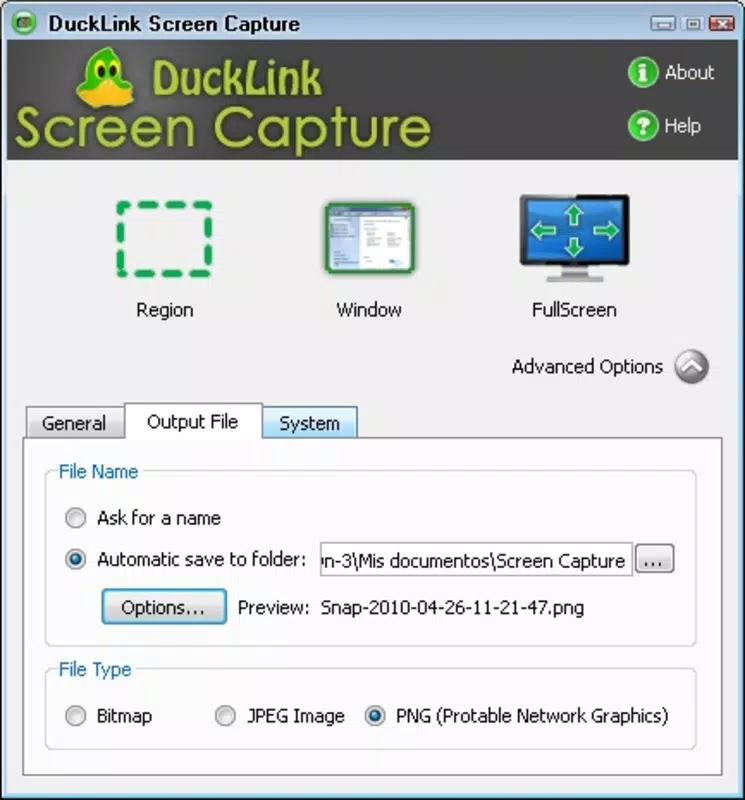
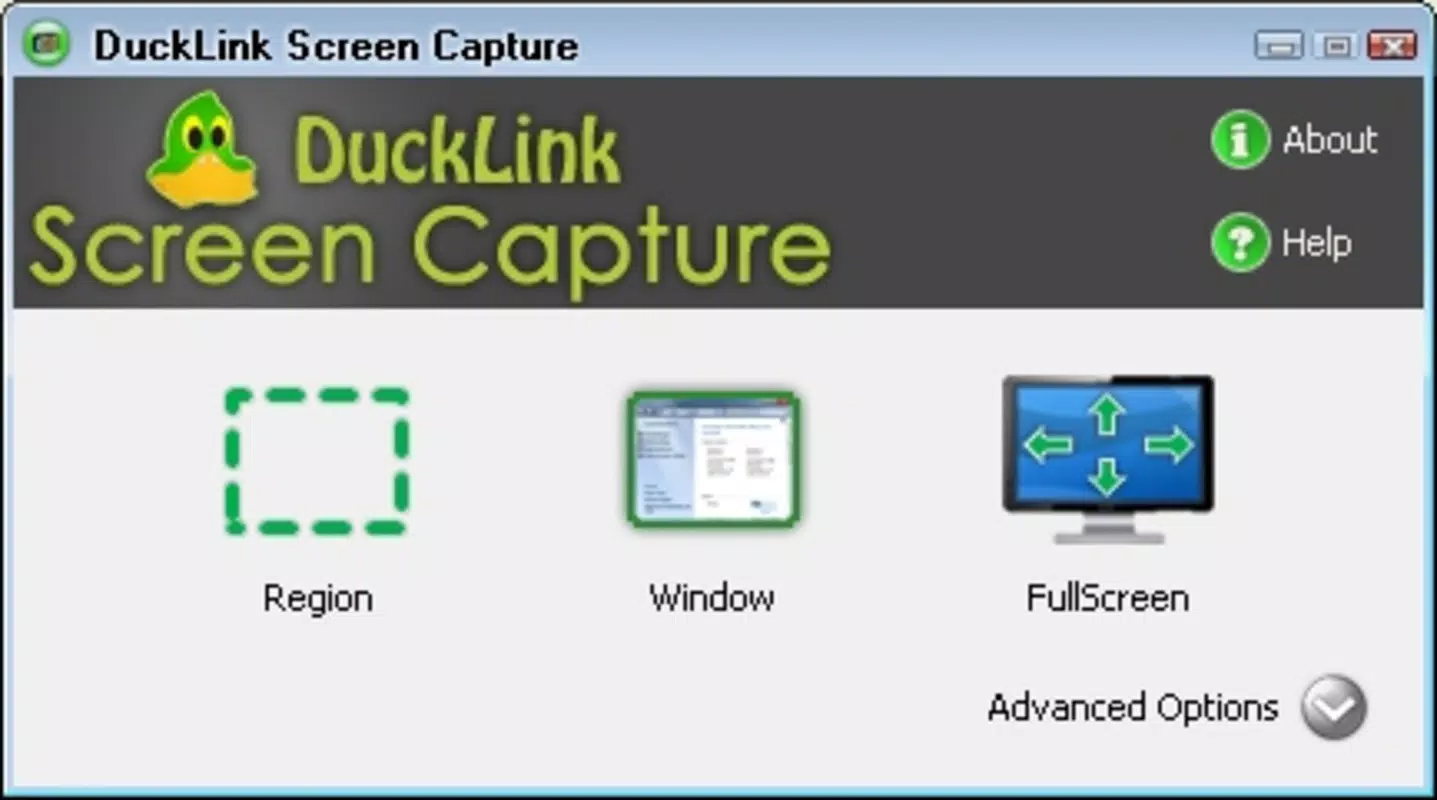
- Flexible Capture Options: Users can choose between capturing a specific area, a designated window, or the entire desktop. This versatility ensures that only relevant content is recorded, minimizing clutter and improving workflow efficiency.
- Custom Keyboard Shortcuts: The app allows users to assign personalized keyboard shortcuts to each capture method. This reduces reliance on mouse navigation and accelerates repetitive tasks, particularly beneficial during presentations or rapid documentation.
- Multiple Image Formats: Screenshots can be saved in JPG, BMP, and PNG formats. This ensures broad compatibility with various platforms, software, and sharing channels, accommodating both compressed and high-fidelity image needs.
- User-Friendly Interface: The interface is designed for immediate usability. Options are clearly labeled and logically arranged, reducing the learning curve for new users while maintaining accessibility for advanced users.
- Lightweight Application: Built to consume minimal system resources, DuckLink Screen Capture runs efficiently even on older devices or systems with limited processing power. This makes it ideal for multitasking environments where performance is critical.
For example, a teacher preparing a tutorial can quickly capture a single window containing a lesson slide, apply a custom shortcut for speed, and save the image in PNG for high clarity. Similarly, a support agent can capture an error message in full screen and share it instantly via email, all without slowing down their device.
Interface, UX & Performance
The user interface of DuckLink Screen Capture is clean and minimalistic, focusing on core functionality without visual distractions. Navigation is intuitive, with primary capture options accessible through a simple menu or keyboard triggers. The layout prioritizes ease of access, allowing users to initiate a capture with minimal steps.
Interaction is responsive, and the app maintains stability during repeated use. Although the developer did not list formal performance metrics, the app’s lightweight design suggests consistent responsiveness across various device categories, including mid-range and older smartphones. It does not appear to cause lag or background process interference.
The app’s performance is likely optimized for real-time capture, ensuring that the captured image reflects the current screen state without delay. User experience is further enhanced by the absence of intrusive ads or unnecessary prompts. The lack of complex settings means users can focus on capturing rather than configuring.
However, the absence of advanced editing tools or cloud integration may limit functionality for power users. Overall, the UX is solid for its intended purpose: fast, reliable screen capture with minimal friction.
Platform Compatibility & Technical Requirements
DuckLink Screen Capture is available for Android and iOS platforms. The app supports the latest versions of both operating systems, though specific version requirements were not listed. The file size is reported as 15.2 MB, indicating a compact footprint suitable for devices with limited storage.
While the developer did not specify minimum OS requirements or hardware capabilities, the lightweight nature of the app suggests compatibility with a wide range of devices. Users with older models may benefit from its low resource consumption. No additional permissions or system-level access were mentioned.
The app is designed to run efficiently in the background without disrupting other tasks. For users seeking a simple, secure screen capture tool, this compatibility profile makes it accessible across diverse mobile environments. However, detailed compatibility information was not fully disclosed, so users are advised to verify system readiness before installation.
Pros and Cons
Pros
- Lightweight design with minimal system resource usage
- Flexible capture options: area, window, or full screen
- Support for multiple image formats (JPG, BMP, PNG)
- Customizable keyboard shortcuts for faster workflow
- Simple, intuitive interface suitable for all skill levels
Cons
- Developer did not provide detailed technical specifications
- No built-in image editing or annotation tools
- Limited sharing or cloud integration features
- Compatibility with older OS versions not confirmed
- Basic functionality without advanced automation
FAQ
Is DuckLink Screen Capture safe to install on my smartphone?
Yes, the app is designed as a secure utility tool. It does not require excessive permissions and operates within standard app boundaries. As with any mobile app, ensure installation from official sources to maintain security.
Can I use DuckLink Screen Capture on older Android or iOS devices?
The app’s lightweight design suggests compatibility with older devices, but specific compatibility details were not provided. Users with older systems should test the app to confirm performance.
Does DuckLink Screen Capture support automatic saving or cloud backup?
There is no indication that the app includes automatic saving or cloud integration. Screenshots are saved locally by default, and users must manually manage file storage.
How do I assign keyboard shortcuts in DuckLink Screen Capture?
Users can customize keyboard shortcuts through the app’s settings menu. The exact steps may vary slightly by device, but the interface is designed for straightforward configuration.
Is DuckLink Screen Capture free to download and use?
The app is available for download, though pricing details were not fully disclosed. Users should check the app store listing for current pricing and update availability.
Final Thoughts
DuckLink Screen Capture delivers a focused, reliable solution for users who need fast and efficient screen captures without the complexity of advanced tools. Its lightweight nature, flexible capture modes, and support for multiple image formats make it a practical choice for everyday tasks. While it lacks advanced editing or cloud features, its simplicity is its strength.
Professionals, educators, and casual users alike can benefit from its straightforward workflow and low system impact. For those seeking a secure, no-nonsense screen capture utility, DuckLink Screen Capture remains a solid option. It may not stand out in a crowded market, but it consistently fulfills its core purpose.
Download DuckLink Screen Capture now.


